 Evabob
Contents
- Before you start
- Sign in
- Choose your @username
- Set up your wallet and PIN
- Get test dollars from the Circle Faucet
- Find your way around
- Send money
- Request money
- Chat and pay
- Ask the Evabob Agent
- Pay for work safely
- Sell with a link
- Circles and collections
- Convert and move money
- Activity and receipts
- Agent wallets
- Security settings
- Troubleshooting
- Getting help
Online version: manual.html on the Evabob website. For what each feature is for, see "What Evabob makes possible".
Before you start
Evabob is a testnet preview. Everything in this manual works with free test dollars that have no value, so you can try every feature without risking real money.
You need:
- The Evabob app on an Android phone or iPhone.
- An email address you can open on that phone. You sign in with a code sent there.
- A few minutes to set a PIN. Choose one you'll remember and nobody else can guess.
Test money only
Don't send real money to an Evabob address. The app runs on test networks, and anything sent from a real network won't arrive.
Sign in
- Enter your emailOpen Evabob, type your email address and tap Send me a code.
- Open the emailYou'll get six digits. Look in your spam folder if they don't arrive within a minute.
- Enter the codeType the six digits. If they expired, tap Send a new code.
There's no password to remember. Each time you sign in, Evabob sends a fresh code.
Choose your @username
Your @username is how people find and pay you. Evabob suggests one; you can keep it or type your own.
- Use 3 to 24 letters, numbers or underscores.
- It isn't your display name. Your name and photo are set separately in Profile.
- You can change your @username once every three months. People can always pay you by email too.
Set up your wallet and PIN
Next, Evabob creates your wallet. It's yours: payments leave it only when you approve them with your PIN.
- Tap Create walletOn the Set up your wallet screen.
- Choose a PINEnter it, then enter it again to confirm. Evabob never sees it and never asks you for it.
- Continue to EvabobYour wallet is ready on three networks: Arc (your main account), Ethereum and Base.
Keep your PIN to yourself
Evabob will never ask for your PIN, recovery phrase, private key or API key, by message, email or phone.
If you skip this step, Profile shows your wallet as Not linked yet. Open Profile › Set up wallet to finish.
Get test dollars from the Circle Faucet
The Circle Faucet gives out free test USDC. It's the quickest way to put money in your Evabob balance while the app is on testnet.
- Copy your Arc addressIn Evabob, tap Wallet, choose Arc (your main account), then Get paid, and copy the address. You can also copy it from the Wallet row in Profile.
- Open the faucetGo to faucet.circle.com in your phone or computer's browser.
- Choose USDC and Arc TestnetPick USDC as the token and Arc Testnet as the network.
- Paste your address and sendPaste the address you copied and press the send button. The faucet sends a fixed amount and limits how often you can ask.
- Watch it arriveBack in Evabob, the money appears in your balance and in Activity, usually within a minute. With the app open, you'll hear a short chime.
Want euros too?
Request EURC on Arc Testnet from the same faucet to try Convert with euros. If you picked a different network by mistake, the money shows under that network in Wallet, and you can move it to Arc with Move money.
Find your way around
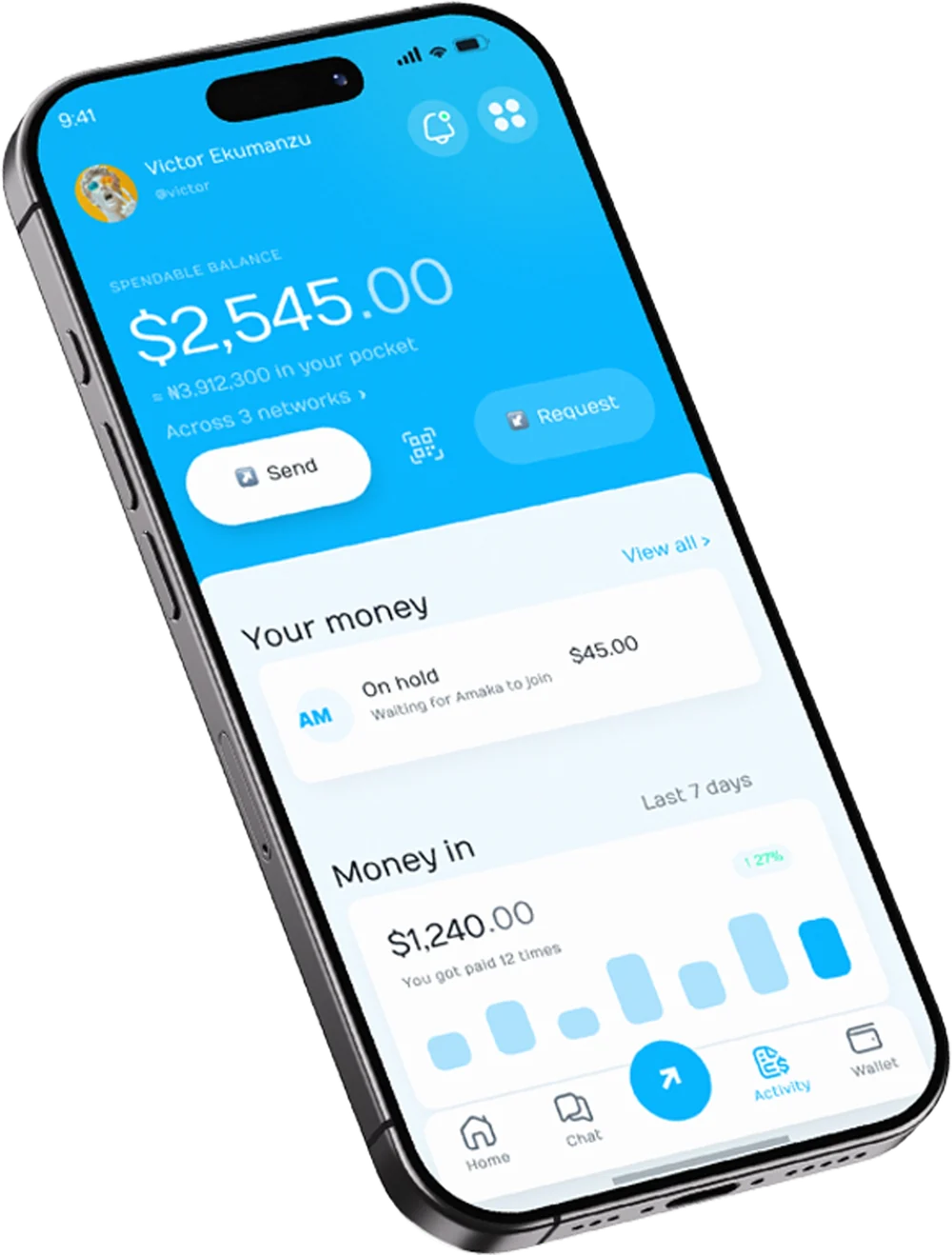
The bar at the bottom
| Tab | What it's for |
|---|---|
| Home | Your balance, quick actions and what's on hold |
| Chat | Conversations, request cards and the Evabob Agent |
| Send (round button) | Opens Send from anywhere |
| Activity | Every payment and receipt, the moment money moves |
| Wallet | Your dollars on each network, with Send, Get paid and Move money |
The menu
Tap the four-dot button at the top right of Home to open the menu: Request, Convert, Move money, Your GA, Agent wallets, Get paid by agents, Work from agents, Sell with a link, and Circles and collections. Tap your photo to open Profile.
Send money
- Tap SendOn Home, or the round button in the bottom bar.
- Choose who it's forType a name, @username or email. Saved contacts appear as you type. You can also paste a wallet address.
- Enter the amountUse the keypad. It can add up for you:
120+35becomes 155. Tap All of it to send your whole balance, or change the currency between dollars and euros. - Add a memo if you likeFor example "Rent, March". It's optional.
- Check the review screenYou'll see their photo, what they receive and the fee. Read any warning carefully.
- Confirm with your PINYou'll see Sent, and the payment appears in Activity. It usually arrives in about a second.
The 10-minute pause
The first time you pay someone, the review screen has a switch to wait 10 minutes before it goes, and it starts on. The money is held during a countdown you can cancel. Leave it on unless you know the person well.
Paying someone who isn't on Evabob
If you send to an email with no account, you'll see They are not on Evabob yet. Tap Hold it for them: they get an email, and the money waits for them for 7 days. If they don't sign up by then, it comes back to you. Until then it shows in Activity as Waiting for them to join.
Scan to pay
Tap the scan button between Send and Request, point your camera at a payment QR code, and the payee is filled in for you.
Request money
- Open RequestFrom Home, or Menu › Request.
- Enter the amount and what it's forFor example "$40, Logo design".
- Add who pays and a due date (optional)If you do, Evabob reminds them the day before, on the day, and three days late.
- Share itTap Share request to send the link, or Show QR code for someone standing next to you.
Follow your requests in request history. You're told when one is paid or becomes overdue.
Paid by milestone
Switch on Paid by milestone and add 2 to 10 lines in dollars, one per milestone. The payer approves them all with one PIN, and each line is paid to you as you deliver it.
Chat and pay
- Start a conversationOpen Chat, tap + and find someone by @username or email.
- Ask for moneyTap Ask for money in the conversation to send a request card with the amount and a note.
- Pay a request you receivedTap Pay on their card and choose how: Pay it all now, Pay half, hold half, or Hold it all.
To decline a request, tap Cancel. The card closes for both of you and the sender is told. You can cancel your own requests the same way. Messages can be copied, and you can send photos from your camera or gallery.
Ask the Evabob Agent
The Evabob Agent is pinned at the top of your chat list. Ask it anything about your money in your own words:
- "How much can I spend?"
- "Send $25 to @john for lunch"
- "Is this payment request real?" (paste the link)
When you ask it to move money, it shows a confirmation card with the exact payee and amount. Nothing happens until you tap Confirm and enter your PIN.
Pay for work safely
When you pay for work with Hold it all or Pay half, hold half, the held money is locked until the work arrives.
If you're paying
- When the worker marks the job delivered, check it. Tap Release to say the work has arrived and pay them straight away.
- If you do nothing, it's released to them 7 days after delivery.
- Need to stop? Cancel and get it back works instantly before delivery. After delivery, choose why and a person at Evabob reviews both sides; the money stays put until they decide.
If you're doing the work
- You can see the money is already set aside before you start.
- Mark the job delivered when you're done, then wait for release.
- If there's a review, tap Add your side and include links or photos of the work.
Sell with a link
- Open Sell with a linkMenu › Sell with a link.
- Describe the itemWhat you're selling (for example "Ankara dress, size 12"), details such as colour or size, and the price.
- Set a delivery windowHow many days you need to deliver.
- Share the linkThe link is copied. Paste it in a chat, a post or your bio, or tap Show QR code.
Buyers see your track record and pay into a hold. Mark each order delivered when it's on its way; the money reaches you when the buyer confirms, or 7 days after you mark it delivered. If you haven't marked an order delivered within your window, the buyer gets their money back.
Circles and collections
Start a money circle
- Open Circles and collectionsMenu › Circles and collections, then New money circle.
- Name it and set the amountEveryone puts in at least $1 a round. Choose how often it runs, for example every 2 weeks.
- Add people in payout orderUp to 20 people. The first person on the list is paid first.
- Start the circleEveryone else gets an invite. It starts when all of them have joined.
Nobody holds the money, not even you. If someone misses a round, their turn moves to the end and they're caught up automatically when their balance allows.
Start a collection
Tap New collection, say what it's for, and set a target (at least $1) and a deadline. It's paid out as soon as the target is reached. If the deadline passes short, everyone is refunded automatically.
Convert and move money
Convert dollars and euros
Open Menu › Convert, choose which currency you're spending, enter the amount, and check You receive and the fee before confirming with your PIN.
Move money between networks
- Open Move moneyMenu › Move money, or tap a network in Wallet.
- Choose where it's goingArc, Ethereum or Base. It goes to your own wallet on that network unless you change the address.
- Enter the amount and confirmYou'll see what arrives after fees. Leave a little on Arc to cover the network cost.
- Follow itSending, then On the way, then Done. It can take a few minutes.
Activity and receipts
Activity lists every payment. Use the filters at the top: All, Money in, Money out and On hold. Tap a row that says On hold, tap to continue to finish or cancel it.
Tap any payment to open its receipt: who, how much, when, the fee and a reference. From there you can:
- Download the receipt to your phone.
- Share a "Paid" link and QR code. Whoever opens it sees the payment re-checked live on the network, so a seller can confirm it themselves. Your memo is never shown.
- Open Details for the technical record, if you need it.
Agent wallets
An agent wallet lets software you use (a bot, a script, an AI assistant) pay for things by itself without touching your main balance. This is an advanced feature; skip it if you don't need it.
- Create an agent walletMenu › Agent wallets, then Create agent wallet.
- Copy the keyGive the key to your software. It's shown once and isn't stored, so copy it now. If you lose it, rotate it.
- Fund itTap Fund with PIN and move money from your balance.
- Set an allowanceAn amount, a time window, and what it may buy. Above your limit it can pay silently, ask you first, or be refused.
Freeze all stops every agent at once. Revoking a key means that software can no longer spend. Withdrawals always go back to your own wallet.
Security settings
Open Profile by tapping your photo on Home.
App lock
Require your PIN or fingerprint to open the app.
Fingerprint or Face ID
Approve payments with your fingerprint or face instead of typing your PIN each time. Your PIN still works.
Family check
Mark contacts as family and set an amount (default $100). Paying them more than that needs a code emailed to you first.
Change app PIN
Change the PIN that opens the app, from the App lock setting.
Why family check matters
Scammers can copy a voice from a few seconds of video and call pretending to be a relative in trouble. With family check on, a big payment to family needs a code from your own email, which a scammer on the phone can't see. If someone asks you to read out that code, stop.
Read warnings on the review screen
Before you pay, Evabob checks who the payee really is. Take extra care if you see a warning that an address isn't an Evabob account, or that it only looks like one you've paid before. Look-alike addresses are a common trick.
Troubleshooting
I used the faucet but my balance is still $0
Check that you chose Arc Testnet on the faucet and pasted the address from Wallet › Arc › Get paid. Give it a minute, then pull down on Activity to refresh. If you picked Ethereum or Base, the money is under that network in Wallet; use Move money to bring it to Arc.
My wallet says "Not linked yet"
Wallet setup didn't finish. Open Profile › Set up wallet and complete the PIN steps.
I didn't get my sign-in code
Check your spam folder, make sure the email is spelled correctly, then tap Send a new code. Only the newest code works.
It says "Not enough money"
The amount plus the fee is more than your balance. Lower the amount, or tap All of it to send everything you can.
"The payment did not go through"
If the message adds Nothing left your wallet, your money is safe and you can try again. Otherwise, check Activity before trying again so you don't pay twice.
Why is my money "On hold"?
Money is on hold when it has left your balance but hasn't reached anyone yet: it's waiting for someone to join, for work to be delivered, or for a 10-minute pause to end. Tap it in Activity to see where it stands or to cancel.
Evabob asked me to sign in again
Your sign-in ended, so Evabob needs to check it's you. Enter the new code from your email.
A payment was refused after several in a row
Evabob limits how many payments can be made in a minute to protect your account. Wait a minute and try again.
Someone asked for my PIN or code
Don't share it. Evabob never asks for your PIN, recovery phrase, private key or API key. Contact support from a device you control.
Getting help
- Ask the Evabob Agent in Chat about a payment, your balance, moving money, or anything that looks unfamiliar.
- Lost your phone? For account recovery, contact support from a device you still control.
- Deleting your account is handled by support while your wallet still has money in it.
- Want to know more? Read What Evabob makes possible for how each feature works.
Keep this manual
Download the PDF to read offline or share with someone you're inviting.